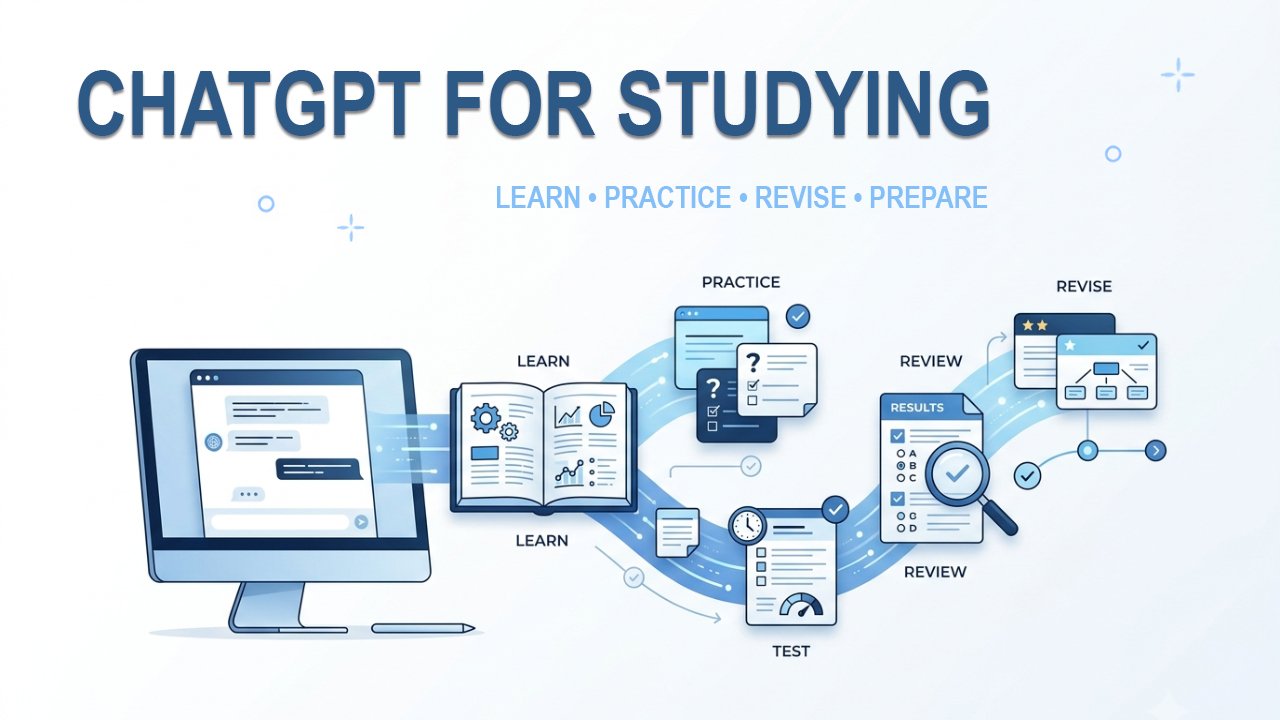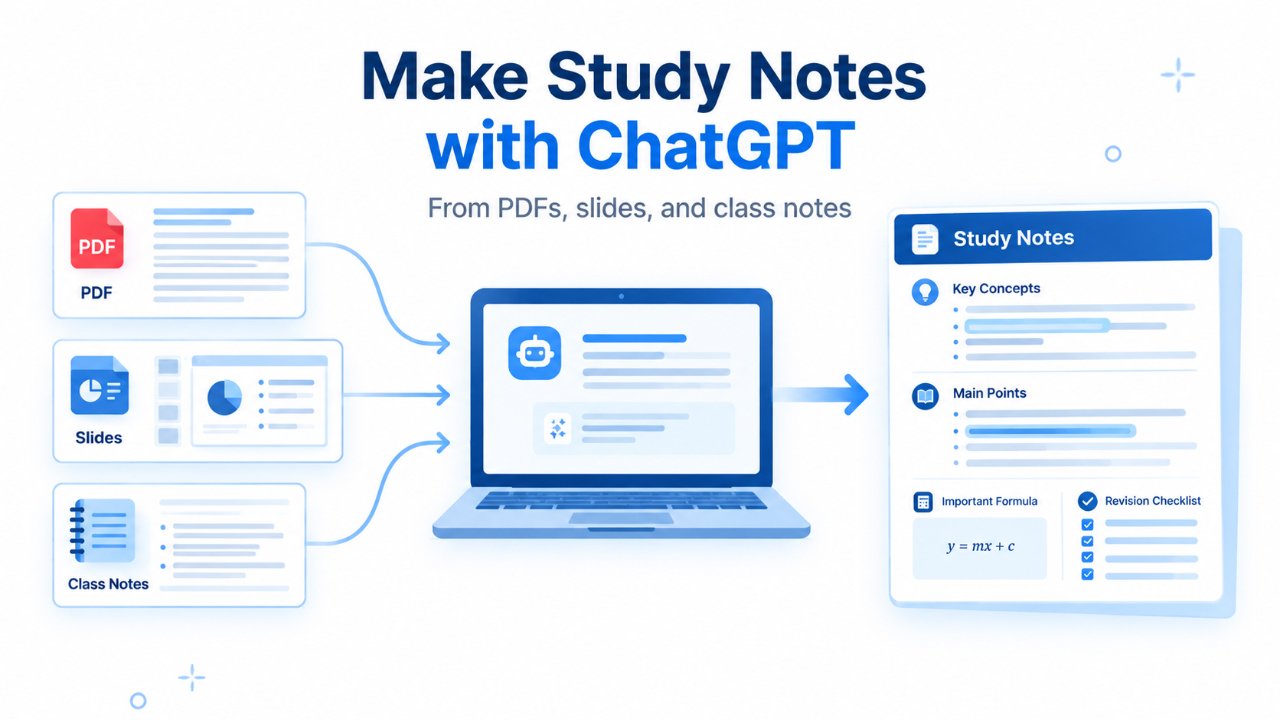
If your study material is spread across PDFs, PowerPoint slides, class notes, and textbook pages, turning everything into usable revision notes can take a lot of time.
ChatGPT can make that process easier. You can upload supported study materials and ask it to extract important points, organize them into notes, simplify difficult explanations, create revision summaries, or turn the material into questions for practice.
The useful part is not simply asking ChatGPT to “summarize this PDF.” A better approach is to give it a clear job at each stage: understand the material, organize it, create the type of notes you need, and then check the result against the original source.
This guide shows how to use that approach with PDFs, lecture slides, and class notes.
Quick answer: Upload your study material to ChatGPT, first ask it to identify and organize the important information, then ask it to create the type of notes you need. Always compare important facts, definitions, formulas, and other exam-critical information with the original material before relying on the notes.
What Study Materials Can You Use with ChatGPT?
ChatGPT supports common document and presentation formats, including PDF, PPTX, DOCX, and TXT files. You can use these capabilities to summarize, extract information from, transform, or compare documents.
For studying, that means you can work with materials such as:
- Lecture PDFs
- PowerPoint presentations
- Digital class notes
- Textbook excerpts
- Worksheets
- Syllabi
- Study guides
- Other supported documents
You can also upload a photo or screenshot of study material when image uploads are available in your ChatGPT experience.
The quality of the result depends partly on the quality of the material you provide. A clear digital PDF is generally easier to work with than a blurry scan or poorly photographed page.
If ChatGPT misses information from a file or image, try uploading a clearer version, pasting the relevant text, or telling it exactly which page or section you want it to use.
A Better Way to Make Study Notes with ChatGPT
Before uploading a file and asking for a summary, it helps to think about what you actually want at the end.
There is a big difference between:
“Summarize this PDF.”
and:
“Turn this PDF into concise revision notes for a college exam. Keep important definitions and formulas, organize the material by topic, and do not add information that is not supported by the source.”
The second instruction gives ChatGPT a much clearer job.
A useful workflow is:
Upload → Understand → Structure → Create → Verify → Revise
You don’t have to follow these steps mechanically every time. For a short document, you may be able to combine some of them. But for longer or more important study material, separating the stages usually gives you more control over the final notes.
How to Make Study Notes from a PDF with ChatGPT
PDFs are a convenient place to start because an entire chapter, lecture handout, or study document can often be kept together in one file.
Step 1: Upload the PDF
Open a ChatGPT conversation and upload the PDF.
Instead of immediately asking for a summary, start by asking ChatGPT to examine the material.
For example:
Prompt:
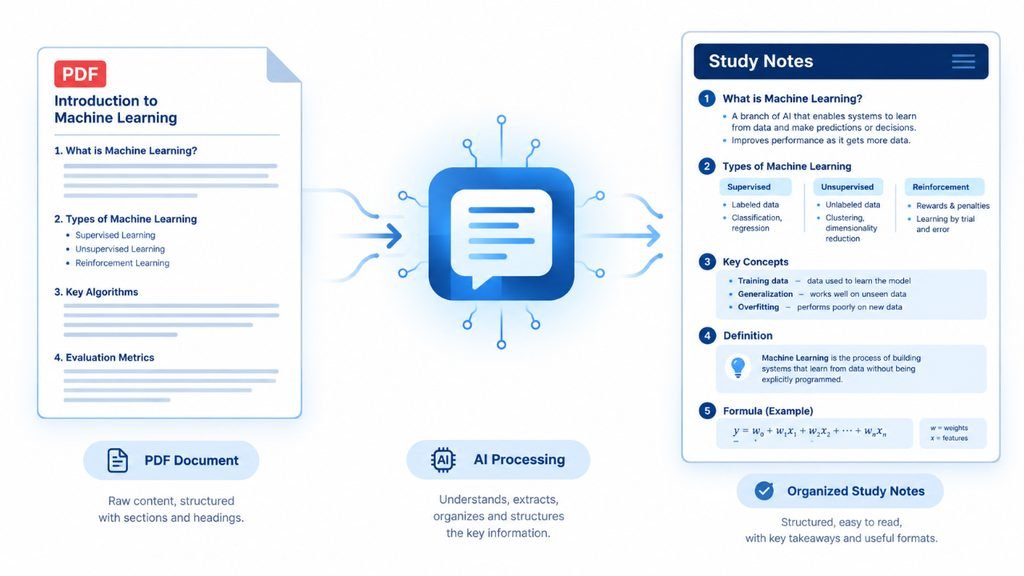
“Read the uploaded PDF carefully. Identify its main topics and subtopics, important definitions, formulas, examples, and concepts that appear important for studying. Do not create the final notes yet. First give me a structured outline of what the PDF contains.”
This first step is useful because it lets you see whether ChatGPT has understood the document correctly.
If the outline misses an important section, you can correct the direction before asking for the final notes.
Step 2: Turn the PDF into structured notes
Once the structure looks right, ask ChatGPT to convert it into notes.
Prompt:
“Using only the uploaded PDF as the primary source, create clear study notes from the material. Organize the notes by topic and subtopic. Keep important definitions, formulas, examples, and technical terms. Explain difficult points in simple language, but do not change their meaning or add unsupported information.”
This produces a much more useful result than simply asking for a shorter version of the document.
Step 3: Choose the level of detail
Your notes should depend on how you plan to use them.
For learning a topic for the first time, you may want detailed notes.
For revision before an exam, you may want something much shorter.
You can tell ChatGPT exactly what you need:
“Reduce these notes to the most important points I should revise before an exam.”
Or:
“Keep the important concepts but remove explanations that are not necessary for quick revision.”
That gives you two different versions of the same source material without having to create the notes manually from scratch.
How to Turn Lecture Slides into Study Notes
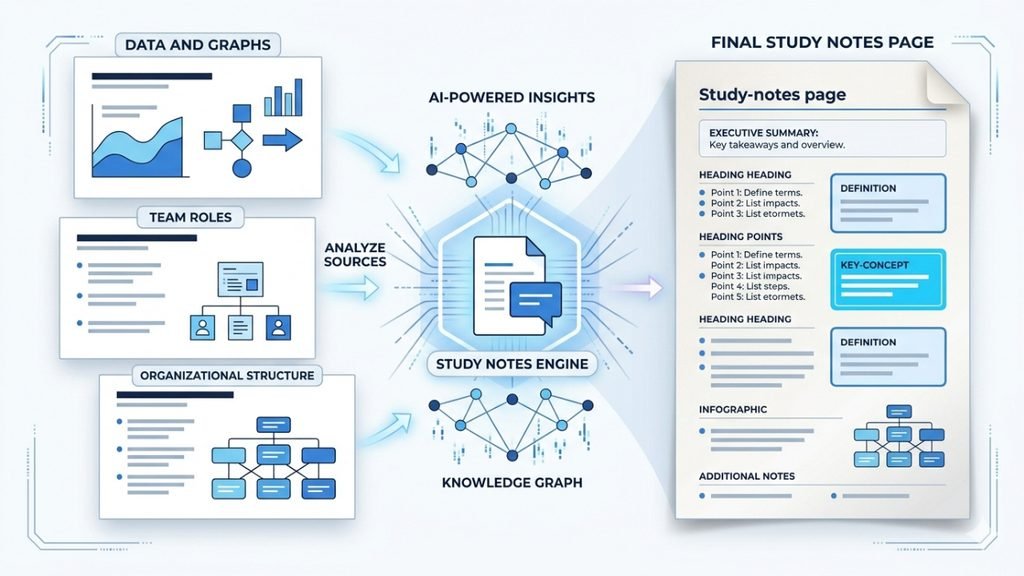
Lecture slides are useful, but they are not always written like proper study notes.
A professor may put only a few keywords on a slide because the rest of the explanation is given verbally during the lecture. If you turn those slides into notes, you need to be careful not to let ChatGPT invent information that wasn’t actually part of the course material.
Upload the presentation and give ChatGPT a specific instruction.
Prompt:
“Turn these lecture slides into organized study notes. Follow the order of the slides and preserve the important terminology. Expand short bullet points only when the meaning is clear from the provided material. Separate information that is directly supported by the slides from anything that would require additional explanation.”
This is particularly useful for college and university students working with PowerPoint-based lectures.
Make the slides easier to revise
After creating the notes, you can ask ChatGPT to produce a shorter version:
“Convert these notes into concise revision notes. Keep the definitions, important concepts, formulas, classifications, and examples. Remove repetition and unnecessary wording.”
You can then use the shorter version for revision while keeping the longer version for understanding the topic.
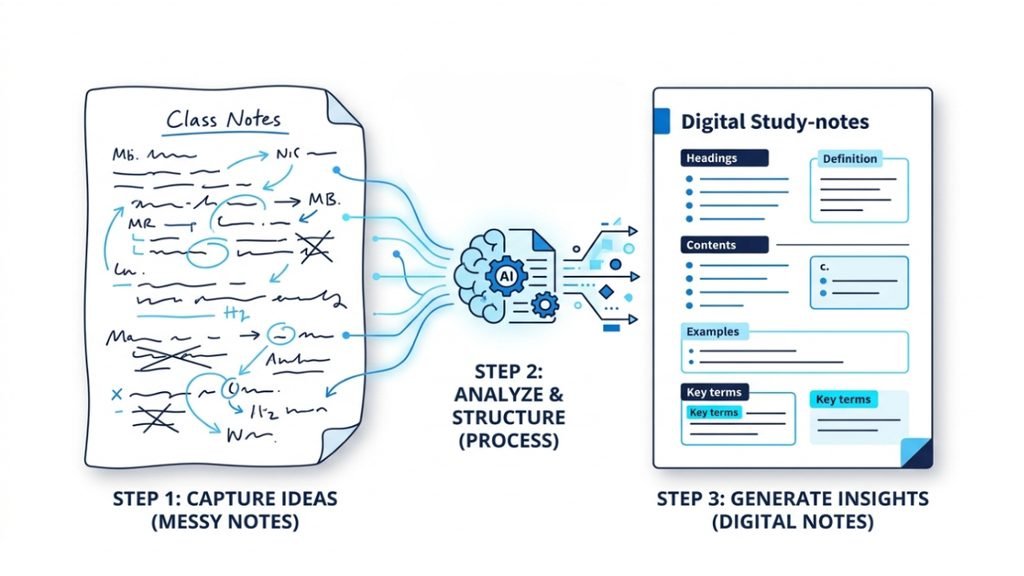
How to Turn Class Notes into Organized Study Notes
Class notes are often less structured than PDFs or presentations.
You may have:
- Short sentences
- Abbreviations
- Bullet points
- Important points written in a hurry
- Examples mixed with definitions
- Several topics on the same page
ChatGPT can help organize this material, but you should not assume that it can automatically know what an unclear abbreviation or incomplete sentence was supposed to mean.
Start by asking it to clean up the structure.
Prompt:
“Organize these class notes into clear study notes. Keep the original meaning and important terminology. Group related points together, identify definitions and examples, and mark anything that appears incomplete or unclear instead of guessing.”
That last instruction is important.
If a sentence in your notes is incomplete, it is better for ChatGPT to flag it than to confidently fill the gap with something that sounds plausible.
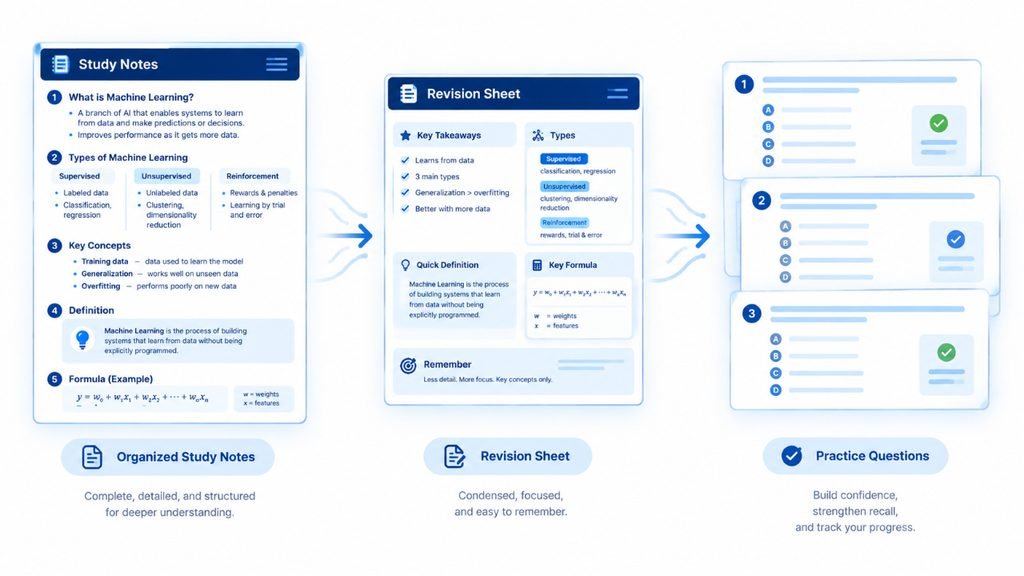
How to Create Different Types of Study Notes
Once ChatGPT has understood your source material, you can turn it into different formats depending on what you are doing.
| Type of notes | Useful for |
| Detailed study notes | Learning a topic properly |
| Short revision notes | Reviewing before an exam |
| One-page summary | Quick revision |
| Question-and-answer notes | Active recall |
| Formula sheet | Mathematics, physics, engineering and other numerical subjects |
| Comparison table | Topics with similarities and differences |
| Flashcards | Definitions, terminology and factual recall |
For example, after creating detailed notes, you could say:
“Create a one-page revision summary from these notes. Include only the concepts, definitions, formulas, and facts that are most important to remember.”
Or:
“Turn these notes into 20 question-and-answer cards. Ask questions that test understanding rather than simply copying headings from the notes.”
This makes the same study material useful at different stages of preparation.
How to Make Revision Notes from Multiple Files
You don’t always have to work with a single document.
Suppose you have:
- A lecture presentation
- Your own class notes
- A textbook chapter
- A study guide
You can use ChatGPT to compare and combine them.
For example:
Prompt:
“I have uploaded my lecture slides, class notes, and textbook excerpt. Compare the three sources and create a single set of study notes. Use the lecture material and class notes as the main structure. Add useful information from the textbook where it supports the same topic. If the sources disagree, clearly identify the difference instead of choosing one silently.”
This approach can help reduce the time spent moving between several documents.
It also gives you an opportunity to notice something that is missing from your own notes.
For example, your class notes might contain an explanation that is absent from the slides, while the textbook might provide a definition that was only briefly mentioned during the lecture.
How to Make a One-Page Revision Sheet
A long set of notes is not always what you need the night before an exam.
Once you have reviewed the detailed material, ask ChatGPT to compress it.
Prompt:
“Create a one-page revision sheet from these study notes. Include the most important definitions, concepts, formulas, classifications, and key relationships. Use short bullet points and compact tables where useful. Do not introduce new information.”
You can then review that sheet and compare it with the original notes.
The important point is that the one-page sheet should be the final stage of summarization, not the starting point.
If you immediately ask ChatGPT to compress a 100-page document into one page, important context may disappear.
How to Use ChatGPT to Create Questions from Your Notes
Creating notes is only part of studying.
After making the notes, you can use the same material to test yourself.
For example:
Prompt:
“Create 15 questions from these study notes. Mix factual questions with questions that test whether I understand the concepts. Ask one question at a time and wait for my answer before giving the next one.”
You can also ask for:
- Multiple-choice questions
- Short-answer questions
- Definition-based questions
- Conceptual questions
- Numerical practice
- True-or-false questions
- Flashcard-style questions
If you are preparing for an exam, tell ChatGPT the level and format you are preparing for. That gives it useful context when generating questions.
How to Check AI-Generated Study Notes
This is the step you should not skip.
ChatGPT can be very useful for organizing and explaining information, but the generated notes should not automatically be treated as the original source.
Check important information against your PDF, textbook, lecture slides, or class notes.
Pay particular attention to:
- Definitions
- Formulas
- Numerical values
- Dates
- Technical terminology
- Classifications
- Steps in a process
- Scientific or mathematical explanations
- Information that appears unusually specific
A useful verification prompt is:
Prompt:
“Compare these study notes with the uploaded source. Identify any statements in the notes that are missing, inaccurate, ambiguous, or not clearly supported by the source. Do not rewrite the notes yet. First list the points that need checking.”
This changes the role of ChatGPT from simply generating notes to helping you inspect them.
If something is important for an exam, you should still check the original course material.
What If ChatGPT Misses Something in Your File?
Sometimes the problem isn’t the instruction. The source itself may be difficult to read.
For example, a PDF may contain:
- Poor-quality scans
- Unclear images
- Small text
- Handwritten material
- Complex diagrams
- Tables that are difficult to interpret
If ChatGPT misses an important part, don’t simply accept the incomplete answer.
Try one of these approaches:
- Upload a clearer version.
- Upload the relevant page as an image.
- Paste the important text directly into the chat.
- Tell ChatGPT the exact page or section to examine.
- Ask it to first describe what information it can actually see.
For example:
“Focus only on pages 12–15. First identify the headings, definitions, formulas, and diagrams you can read. Tell me if any part is unclear before creating the notes.”
This gives you a chance to catch a problem before it affects the entire set of notes.
Can Study Mode Help with These Notes?
Yes. Study Mode is particularly useful when your goal changes from creating notes to learning and testing yourself.
OpenAI describes Study Mode as a learning experience that can work with uploaded class notes, slides, worksheets, textbook excerpts, PDFs and other study materials. It can guide you through concepts, ask questions, provide feedback, and create practice questions or flashcard-style review.
For example, after creating your notes, you could use Study Mode and ask:
“I have uploaded my study material. Help me revise this topic. Ask me questions one at a time, wait for my answer, and explain anything I get wrong.”
This is different from simply asking ChatGPT for a summary.
The notes help you organize the material. Study Mode can then help you work through and practice that material.
Keep in mind that Study Mode can still make mistakes, so important information should be checked against your course material.
Tips for Getting Better Study Notes from ChatGPT
A few small changes to your prompts can make a noticeable difference.
Tell ChatGPT who you are studying for
Instead of:
“Explain this chapter.”
Try:
“I am a first-year college student studying this topic for an upcoming exam.”
The appropriate level of explanation can be very different for a school student and a university student.
Tell it what to preserve
If a subject contains technical terminology, formulas, or definitions, say so.
For example:
“Keep the original technical terms and formulas unchanged.”
Tell it what not to do
This can be just as useful as explaining what you want.
For example:
“Do not add facts that are not supported by the uploaded material.”
Ask for structure
If you want useful revision notes, specify the structure:
“Organize the notes using headings, subheadings, bullet points, definitions, examples, and formulas where appropriate.”
Work in sections for very large material
If a document is long, don’t assume that one giant prompt will always produce the best notes.
You can work chapter by chapter or section by section and then ask ChatGPT to create a final consolidated revision sheet.
This also makes it easier to spot missing information.
Common Mistakes to Avoid
Asking for a summary without explaining the purpose
“Summarize this” is vague.
Tell ChatGPT whether the result is for learning, revision, an open-book exam, flashcards, or quick review.
Asking for extremely short notes too early
If you compress the material before understanding it, important details can disappear.
Start with structured notes and create shorter versions later.
Letting ChatGPT guess missing information
If something is unclear in your source, ask ChatGPT to flag it.
Don’t instruct it to fill every gap automatically.
Treating generated notes as a replacement for your course material
Your original textbook, lecture material, teacher’s instructions, and syllabus may contain details that a generated summary leaves out.
Use AI-generated notes as a study aid, not as the only source you rely on.
Copying AI-generated answers into graded work
Your school, college, university, or instructor may have specific rules about AI use. Follow those rules, particularly for assignments and other assessed work.
A Simple Workflow You Can Reuse
If you don’t want to remember all of the prompts above, use this basic process:
1. Upload your material
Start with the PDF, slides, or class notes you actually need to study.
2. Ask ChatGPT to understand it
Have it identify the topics, important concepts, definitions, formulas, and structure.
3. Create detailed notes
Ask for organized notes based primarily on your uploaded material.
4. Make a shorter version
Turn the detailed notes into revision notes or a one-page summary.
5. Check the important information
Compare definitions, formulas, technical details, and other important points with the original source.
6. Test yourself
Use the notes to create questions, flashcards, or a Study Mode session.
This is more useful than asking ChatGPT to produce a final summary in a single step because you remain involved in the process.
FAQs
Can ChatGPT make study notes from a PDF?
Yes. You can upload a supported PDF and ask ChatGPT to extract important information, organize it by topic, summarize sections, or turn it into different types of study notes.
Can ChatGPT make notes from lecture slides?
Yes. You can upload a supported presentation and ask ChatGPT to turn the slides into structured notes. For better results, tell it to preserve important terminology and avoid inventing information that is not supported by the slides.
Can ChatGPT turn class notes into revision notes?
Yes. You can provide your class notes and ask ChatGPT to organize them, remove unnecessary repetition, identify important concepts, and create a shorter revision version.
Can ChatGPT make one-page study notes?
Yes. Once you have a more detailed set of notes, you can ask ChatGPT to condense them into a one-page revision sheet containing the most important concepts, definitions, formulas, and facts.
Are ChatGPT-generated study notes accurate?
They can contain mistakes or omissions. For important study material, compare the generated notes with your original PDF, textbook, lecture slides, or class notes before relying on them.
Can ChatGPT create questions from my study notes?
Yes. You can ask it to create multiple-choice questions, short-answer questions, conceptual questions, flashcards, or other practice exercises based on your material.
Final Takeaway
ChatGPT is most useful for making study notes when you treat it as a tool for organizing and working with your study material, rather than as a machine that should replace the material itself.
Upload your PDF, slides, or class notes. Let ChatGPT identify and organize the important information. Turn that material into the type of notes you actually need, then check the result against the original source.
From there, you can turn the same material into revision sheets, questions, flashcards, or a guided Study Mode session.
The goal isn’t to make your notes as short as possible. It’s to make them clear enough to understand and useful enough to revise.